User
Accessing Your Profile
To access your profile page:
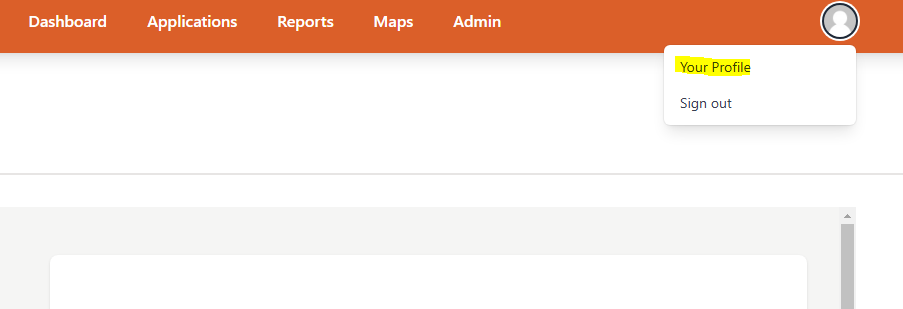
- Click on your profile picture in the top navigation
- Select Profile from the dropdown menu
Your profile page displays:
- Your name and email
- Date joined and last login
- Your organization and role
- Options to update your name and password
Your Role
Your role determines what actions you can take in AppsFolio:
| Role | Description |
|---|---|
| Organization Manager | Full access to organization settings, user management, and all features |
| Application Manager | Can create and manage applications, create public reports |
| Base User | Can view applications, create private reports, edit apps where they're an editor |
Your current role is displayed on your profile page. To change your role, contact your Organization Manager.
How to change your profile picture
AppsFolio uses Gravatar to display user profile pictures seamlessly. Gravatar (Globally Recognized Avatar) is a service that links profile pictures to email addresses, enabling them to appear automatically on supported platforms. To update your profile picture in AppsFolio, create a Gravatar account using the same email address associated with your AppsFolio account. Once you upload or change your profile picture in Gravatar, it will automatically sync and appear in AppsFolio. Learn more or create your account here: https://gravatar.com/
How to change your password
- To change your password navigate to your profile picture and click on that to access the drop down. In the drop down select your profile
- At the bottom of the profile section there is a form to change your password
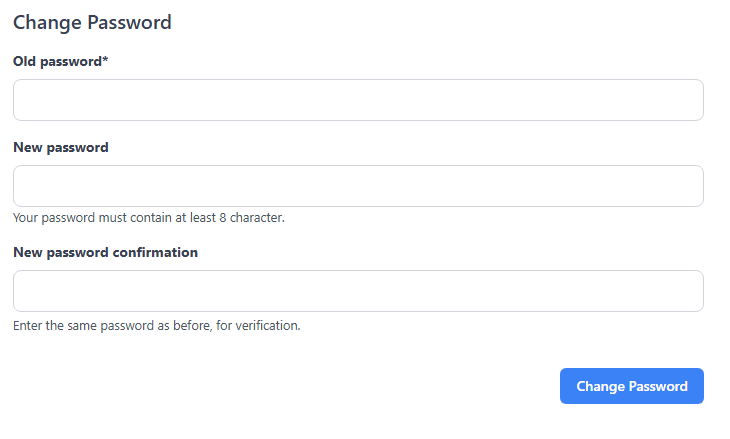
- AppsFolio requires a minimum of 8 characters and recommends 15 characters based on the NIST Standards
How to update your name
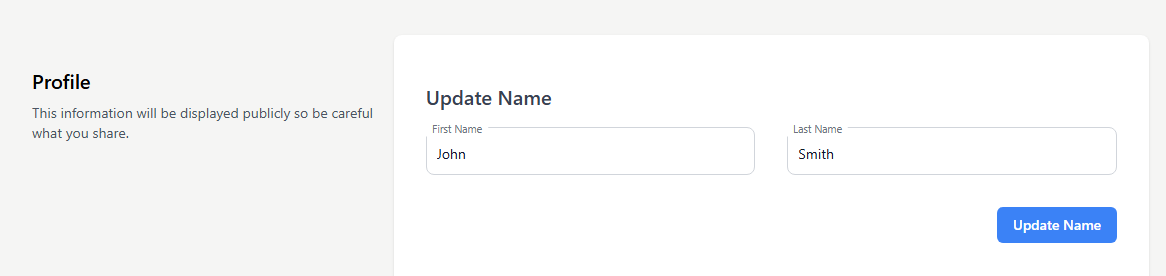
- To update your name you will need to go to the profile section and enter in the updated name
How to leave your organization
If you need to leave your current organization:
- Go to your Profile page
- Click the Leave Org? button in the bottom right of the Account Details section
- Confirm your decision in the popup
Warning
Leaving an organization removes your access to all applications and data in that organization. You can only rejoin if an Org Manager sends you a new invitation.
After leaving:
- You'll be redirected to the organization selection page
- You can join a different organization or create a new one
- Your account remains active - only your organization membership is removed