Organization
What is an organization
An organization (org) in AppsFolio is your team's workspace where you manage your application catalog. Each org has its own unique subdomain URL (e.g., yourorg.appsfol.io) and its own set of applications, content types, sections, and reports.
New users can either create a new org or join an existing one.
How to join an organization
To join an organization please contact the org owner or manager to send you an invitation. Currently the only way to join an org is through an invitation link, email domain, or direct email invitation.
How to create an organization
- After signing up for AppsFolio select create an org from the landing page
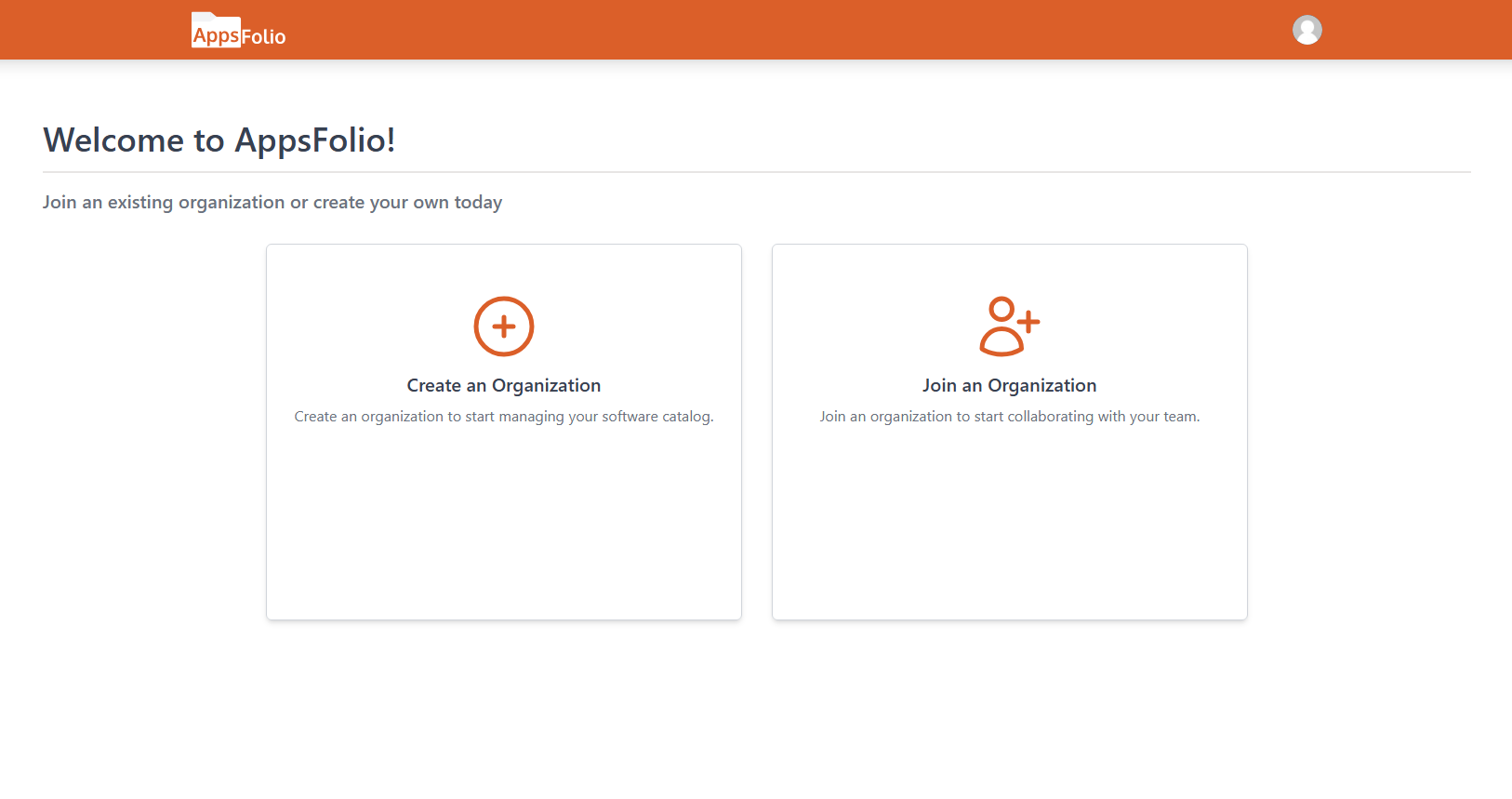
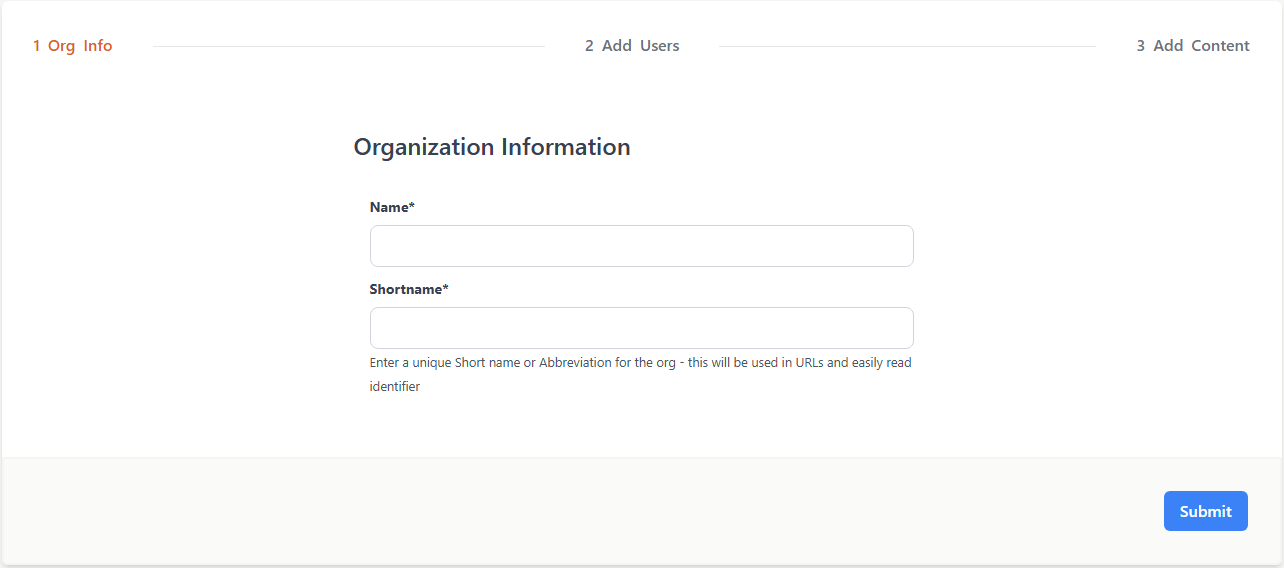
- Enter the essential details for your org:
- Org Name - The display name for your organization
- Org ID - A unique identifier that becomes your subdomain URL (e.g.,
mycompanybecomesmycompany.appsfol.io)
Info
The Org ID must be URL-safe (letters, numbers, dashes, and underscores only). Choose carefully as this cannot be changed after creation.
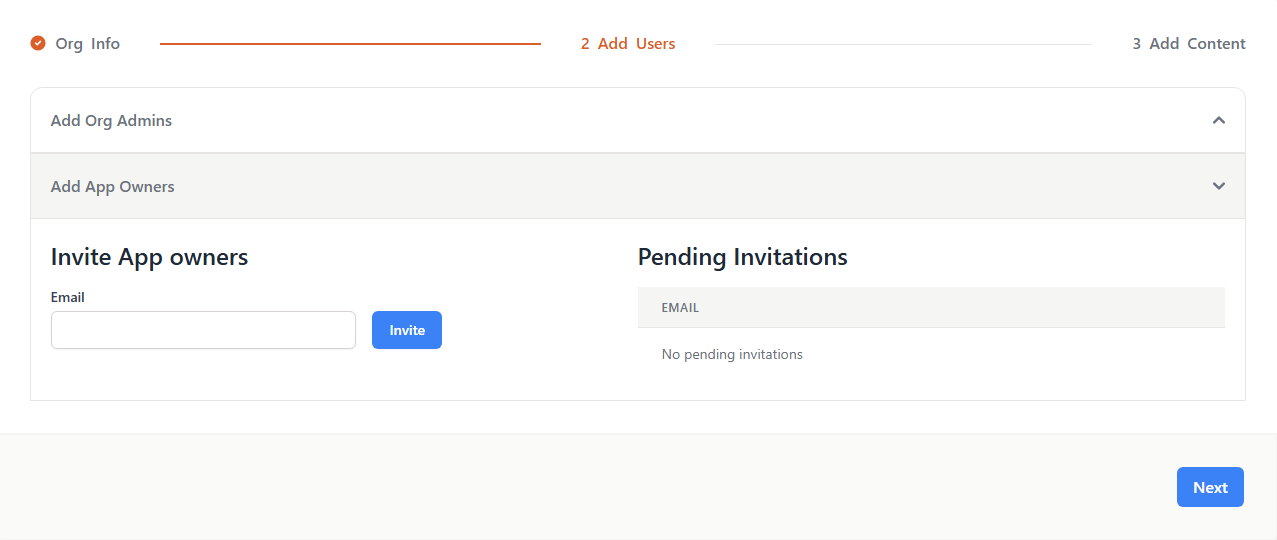
- Add Org Managers and App Managers
- Start inviting org members and filling out metadata for the applications
How to manage your organization
Adding members
There are three different ways that members can be added to an org this article will go over how to do all three and the best use cases
-
Users can be added directly by email
-
This is the best when you are adding a few users or if you are trying to add a user and give them roles at the same time
-
This is the most secure of the three ways
-
-
Users can be added through sharable link
-
Org managers can generate these shareable links in the user management section in the admin tab - these links expire after 72 hours
-
These are the best for when you are adding a whole team to your org for example putting the link into a slack channel for anyone who has access to that slack channel to join the org
-
These have the least amount of security so it is recommend to use them cautiously
-
-
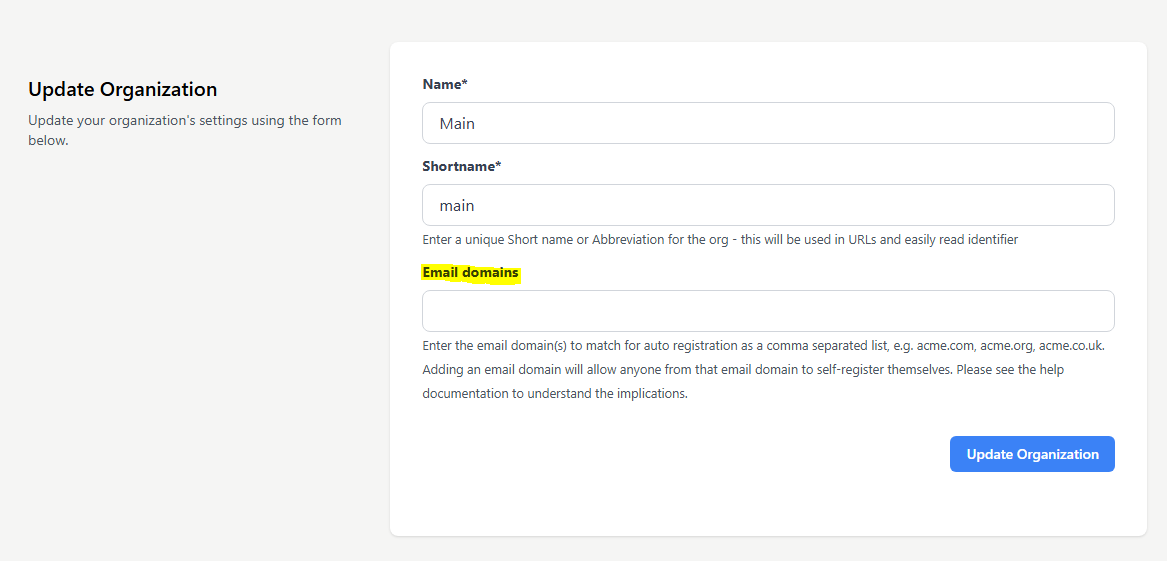
Users can be added if their email domain name matches the domain name established in the org
-
This is by far the easiest way to allow users to join the org but also is only available to paying orgs
-
In the org setting page there is an option for automatic joining based on domain names
-
When someone who has an email domain name that matches the selected one for an org signs up for AppsFolio they will automatically join
-
Info
When a user is added to an org it is not an invitation that they accept and when they click on a sharable link they join the org without the approval of the org admin
User permissions
- Org Manager
- Update organization settings
- User management
- Invite users
- Remove users
- Change a user's role
- Edit any application
- Create Org Visible reports
- Create or add applications
- Contact AppsFolio support
- Create or add content types
- Create or add sections
- See all content types regardless of visibility setting
- App Manager
- Create applications
- Create Org Visible reports
- Edit only the applications they own or are an editor of
- See content types with visibility set to "IT Admin & above" or "App Editor & above"
- IT Admin
- See content types with visibility set to "IT Admin & above"
- All other permissions are the same as a regular User
- User
- Create Private reports
- Edit applications they are an editor of
- Can only see content types with visibility set to "Everyone"
Info
The IT Admin role is intended for users who need visibility into sensitive operational or technical metadata (for example, IT Admin notes or system-level information) without requiring full App Manager permissions. To assign the IT Admin role, use the bulk role dropdown in the Members section of org settings.