Applications
What is an application
In AppsFolio, applications are essentially entries in your catalog representing the software tools or applications you want to organize and track.
How to create an application
-
App Mangers can add applications by clicking the add app button in the Applications page
-
App information can be manually entered in
-
If the app name matches an app from the Resource Library it will autofill the summary, description, and logo
-
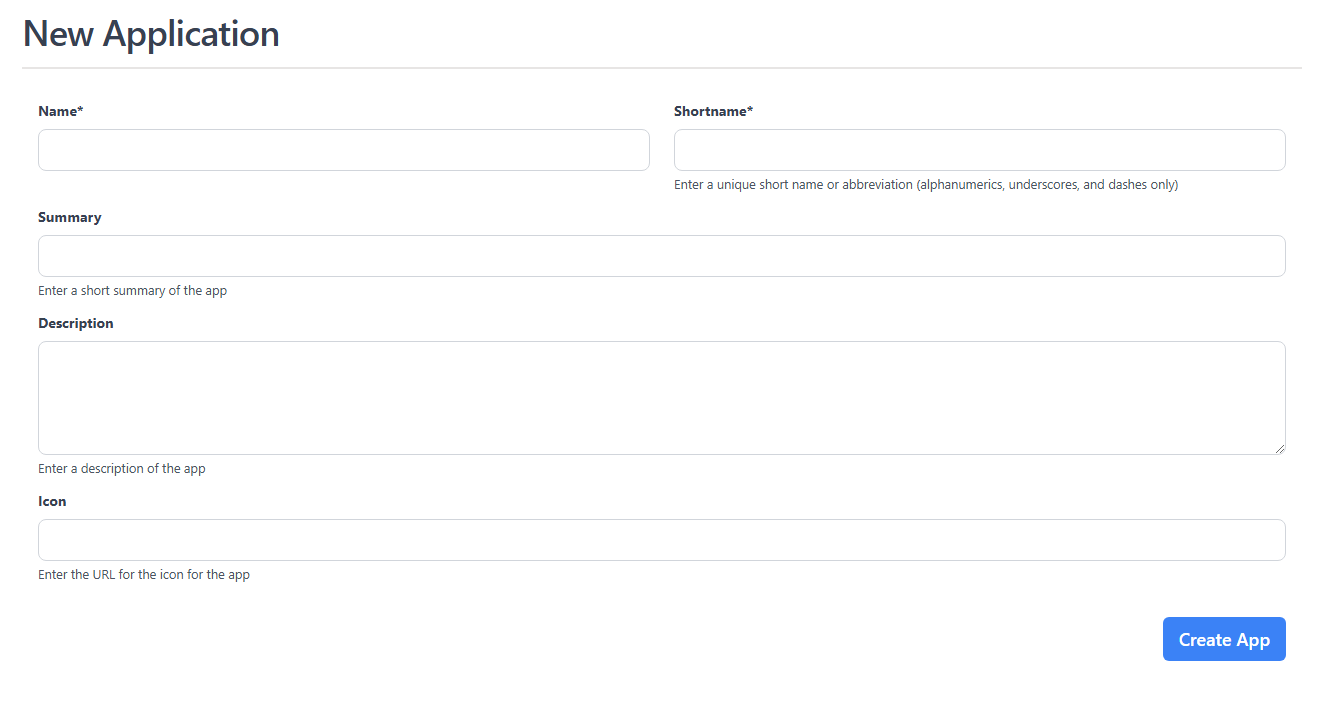
How to add a logo or icon
Application logos can be added in two ways:
- External URL - Enter a URL to an image hosted elsewhere
- Upload a file - Upload an image file directly to AppsFolio (PNG, JPEG, GIF, SVG, or WebP up to 5MB)
Uploaded logos are stored securely and served through AppsFolio with proper access controls.
Info
Applications added from the Resource Library will include the name, shortname, summary, description, and logo automatically.
How to add editors to an application
-
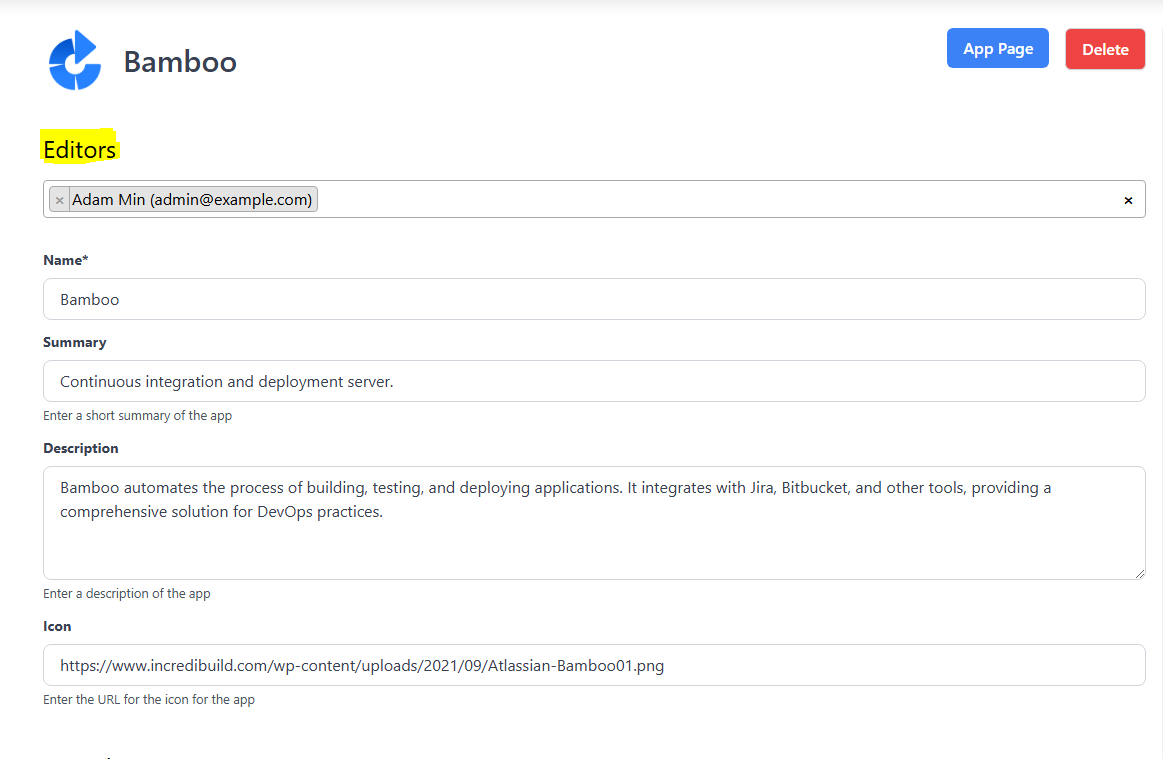
The owner of an application can also invite other users to be editors
- Any member of the org can be an editor as long as they are invited by the app owner or another editor
How to add applications from the Resource Library
-
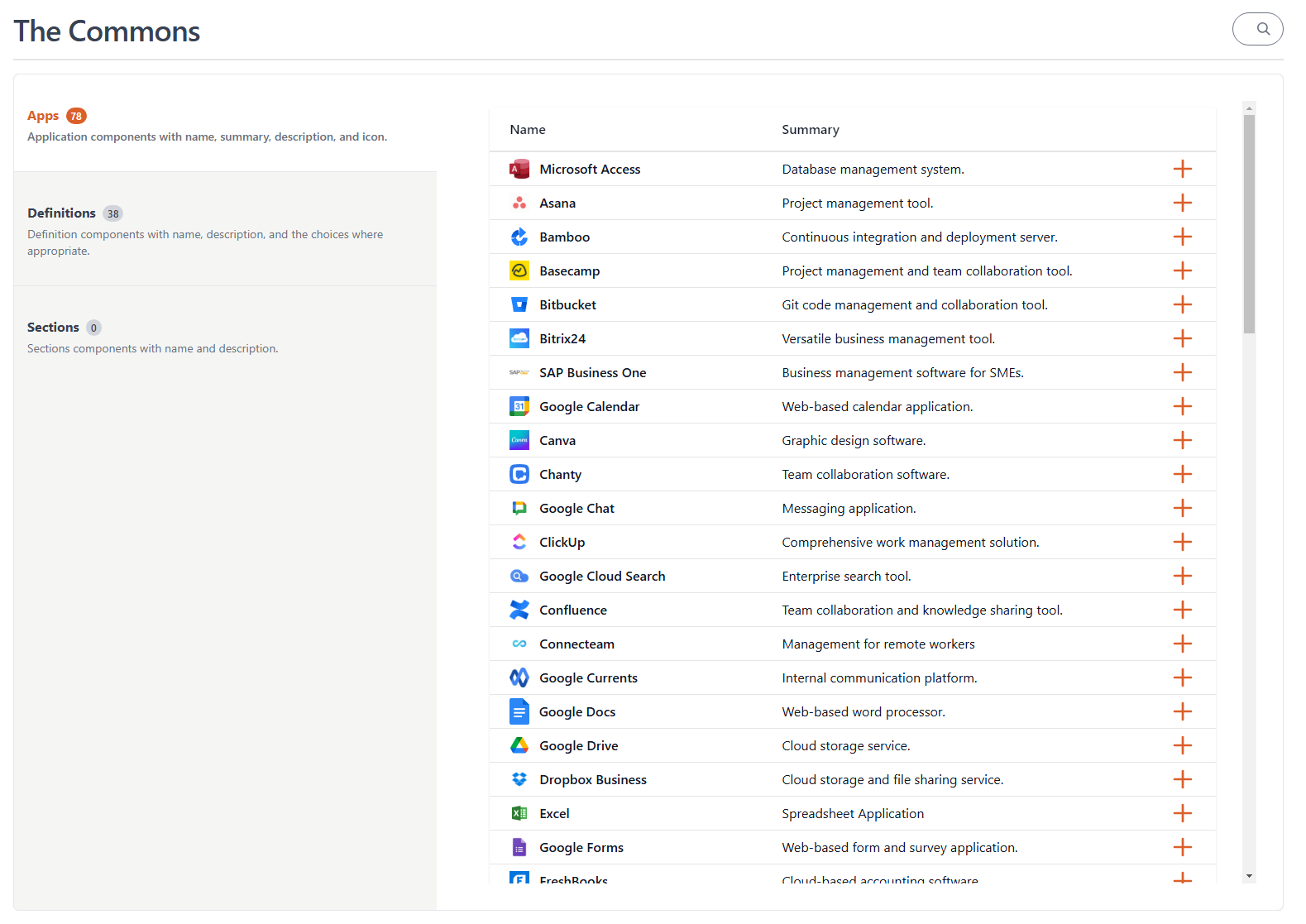
The org owner can add applications through the AppsFolio Resource Library during org setup
-
This is the best way to add applications in bulk and also add "families" of applications - the entire office suite
-
App Managers and Org Admins invited through the setup will also be able to access the apps section of the Resource Library when they first join
-
How to bulk import applications
For organizations that need to add many applications at once, AppsFolio offers a bulk import feature.
Import Apps
The Import Apps button on the Applications page allows you to import applications from a CSV file with owner/editor assignment.
- Upload a CSV file with application details and owner/editor emails
- Assign owners and editors during import
- Automatically send invitations to users who aren't yet members
- Preview and review before importing